
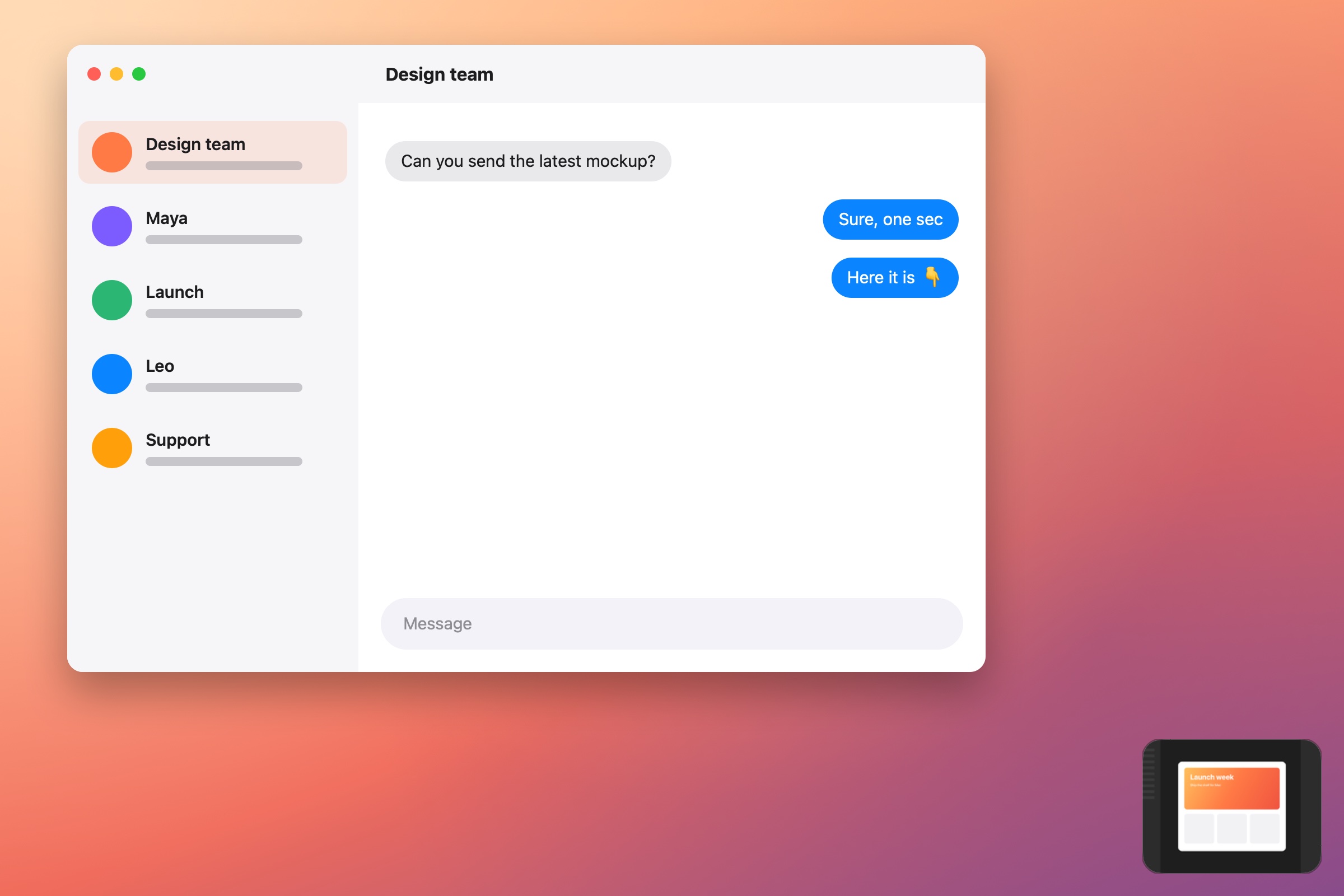
Capture the entire screen
Press Shift–Command–3. macOS captures every visible display and saves the result using your current screenshot settings. If you use more than one display, macOS creates a separate image for each one.
Capture a precise area
Press Shift–Command–4, then drag across the area you want. Before releasing, hold Space to reposition the selection without changing its size. Press Escape to cancel.
Capture one window cleanly
Press Shift–Command–4, then press Space. The pointer becomes a camera. Move it over a window and click to capture that window rather than everything around it.
Open the screenshot toolbar
Press Shift–Command–5 when you want capture controls in one place. The toolbar lets you choose still-image and screen-recording modes, set a timer, show or hide the pointer, and choose where files are saved.
Copy instead of saving a file
Add Control to a screenshot shortcut to copy the result to the clipboard. For example, Control–Shift–Command–4 copies a selected area so you can paste it directly into a message or document.
Choose a shortcut by what happens next
Use a clipboard shortcut when the image has one immediate destination. Save a file when you may reuse it, compare it with another capture, or return to it later. The capture takes a second either way; choosing for the next step prevents extra cleanup.
Need help locating saved files? Read how to find recent screenshots on Mac.